Interface
In the following the various components of the user interface are introduced and their usage described. The UI should be sufficient for most common use cases. However, if functionality is missing, user created modules can provide these. Examples of how to achieve certain tasks using the tools provided by Joystick Gremlin are shown in Examples.
The following is a short overview of the different components that make up the main user interface, shown in the following image.
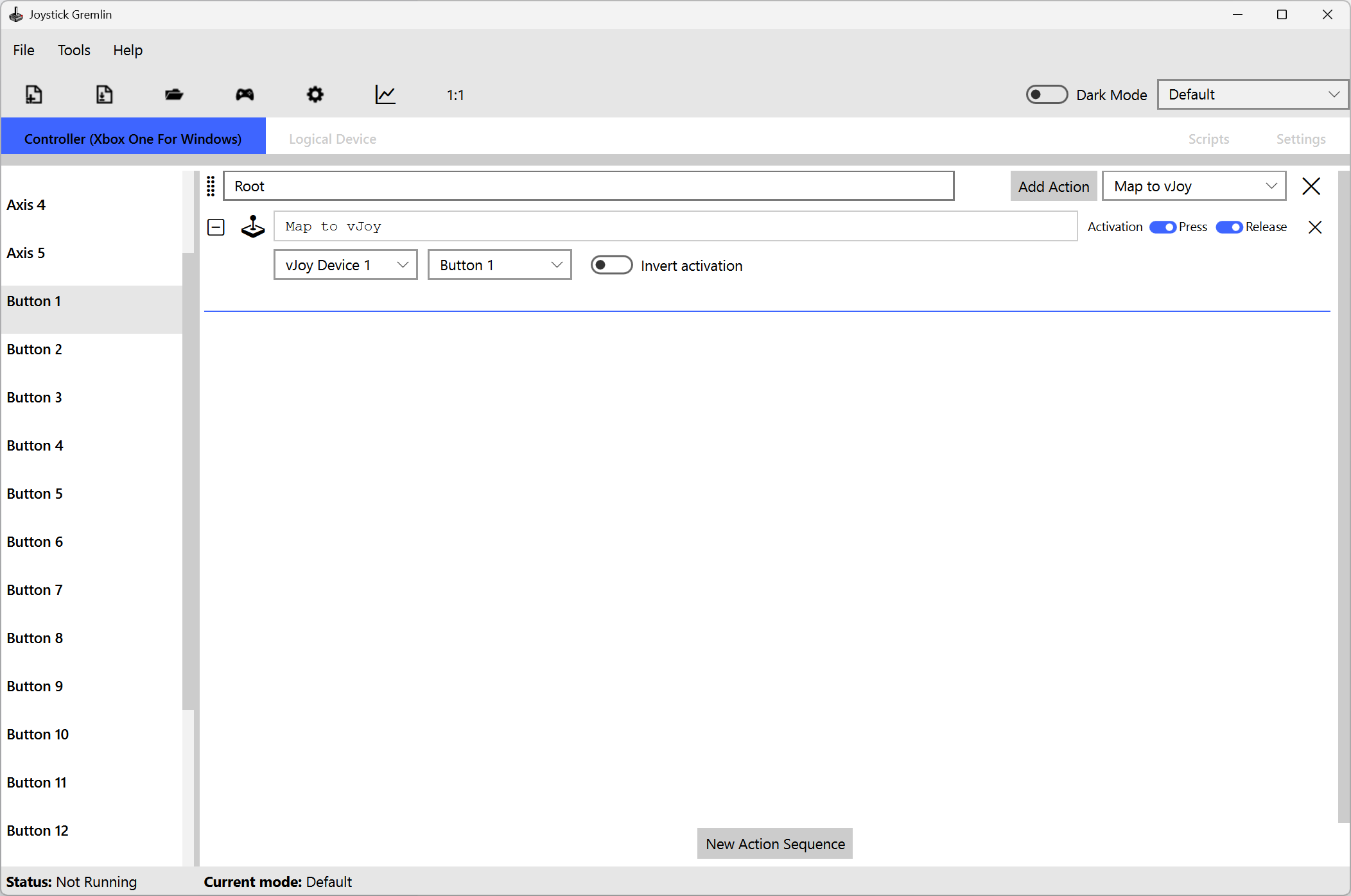
Joystick Gremlin UI
- Overview of all the inputs available for a given physical device. The small icons on the far right of each input indicate the type of actions associated with the input. The icons and their meaning are summarised in the table below.
- The right hand portion of the UI shows the list of containers and actions associated with the currently selected input. This panel allows configuring the actions to execute when the physical input is used.
- This drop down lists all available actions for this type of input. Pressing the “Add” button will embed the selected action in a basic container.
- This drop down contains the available containers for the currently selected input. Pressing the “Add” button inserts an empty container of the desired type.
- Each container can contain up to three tabs that handle various configurations. The Action tab allows the basic configuration of the actions. The Condition tab allows fine tuning under which conditions the action or container should be executed. Finally the Virtual Button allows configuring an axis or hat to be used like a button.
- The mode section allows changing the mode currently being configured.
- Each tab represents an individual device that is currently connected to the computer. The “Settings” tab allows configuring properties for the entire profile.
- Tool bar which holds the most commonly used actions, from left to right:
- Open an existing profile.
- Activate Joystick Gremlin, when active the button is pressed and a green icon is shown. This also changes the status bar display. Pressing the button while Joystick Gremlin is running will disabled it again.
- The status bar shows whether or not the program is currently running a profile. If the program is running the currently active mode is shown as well if code execution is paused. If the input repeater is active it’s status is also shown in the far right.