Tools
Gremlin comes with a variety of tools to both manage Gremlin and its profiles but also to introspect the behavior.
Input Viewer
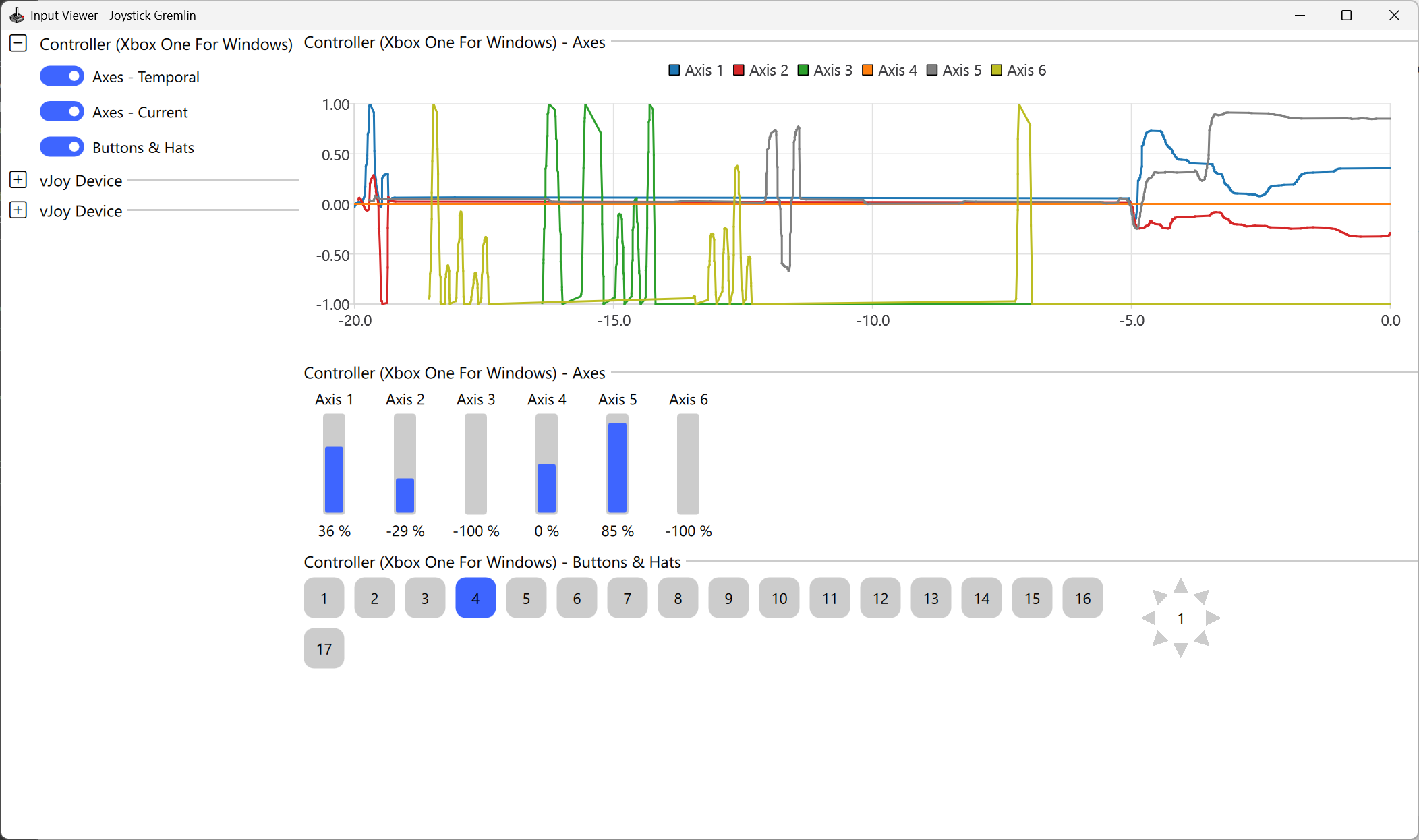
The Input Viewer shows the inputs received by Gremlin from all sources. It can show axes values either as a time series or the current state while button and hats can be visualized as their current state.
Calibration
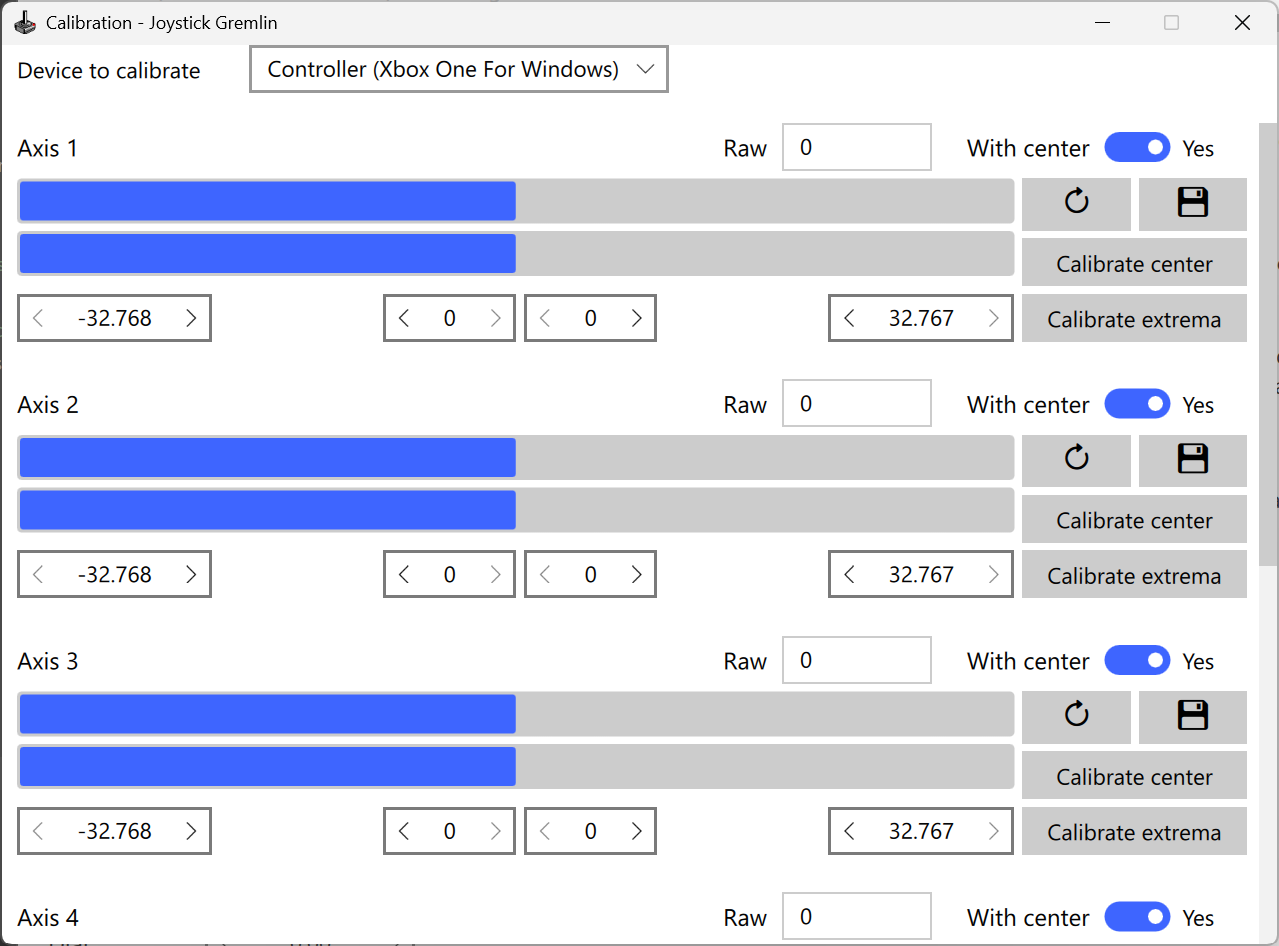
The calibration dialog allows calibrating the physical devices used by Gremlin. The calibration information is applied to every reading Gremlin receives from the physical device before processing it further. The dialog shows the raw as well as the post-calibration values directly in the UI. The values can be recorded simply by moving the axis with the input fields permitting manual adjustments to the recorded values.
Auto Mapper
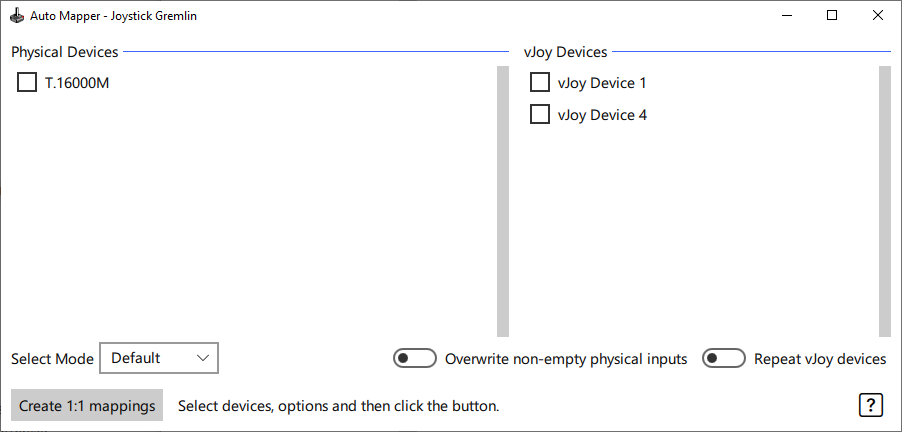
The auto mapper tool allows to create simple 1 to 1 mappings that add Map to vJoy actions between the selected physical input and the selected vJoy output. Select the physical devices and vJoy devices to use before clicking the “Create 1:1 mappings” button. The two options enable the following behaviors.
- Overwrite non-empty physical inputs
- Normally inputs with configured actions are skipped, if this option is activated the existing actions are removed and a new mapping is added.
- Repeat vJoy devices
- If more vJoy outputs are required than available, this option will reuse already assigned vJoy inputs.
Swap Devices
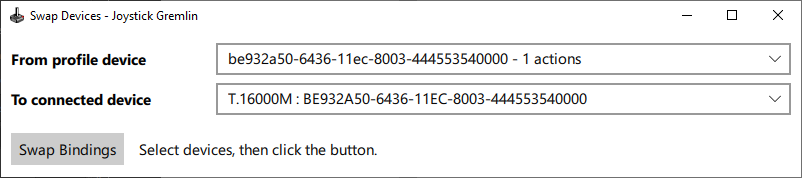
This tool allows assigning contents from a profile to an existing physical device. It can be used when migrating to a new machine where device identifiers have changed or when using a profile made by someone else. The assigning of profile mappings to a device only allows the mapping to a device that has the correct number of inputs required by the configuration.
Pick the source device that exists in a profile and the target device that is currently connected, then press the “Swap Bindings” button.