Modes
Gremlin has a concept of modes which can be seen as layers which can define their action sequences for inputs. The Concepts page gives an explanation of how modes interact with the other aspects of Gremlin.
Mode Management
Modes are created and modified via the Tools -> Manage Modes window, which you can see below.
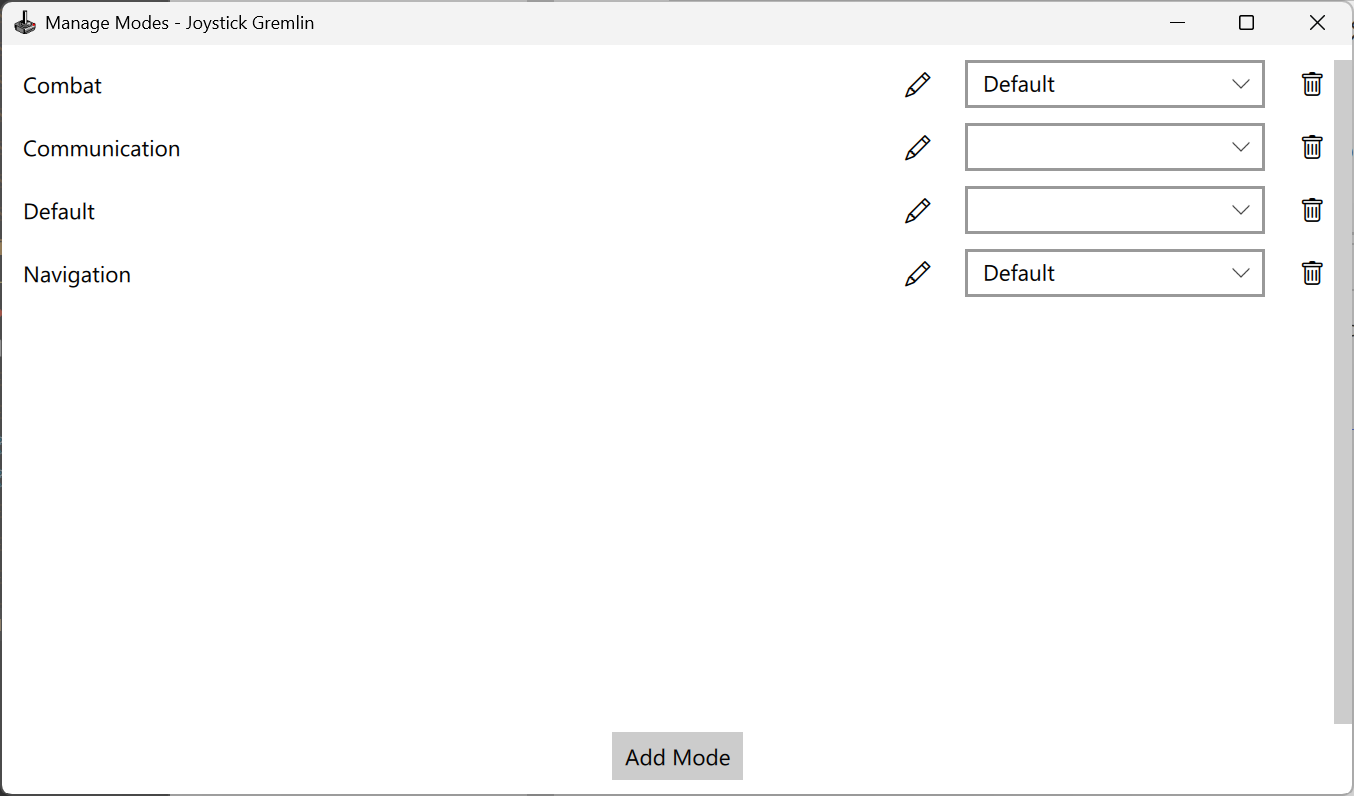
Window allow the creation, deletion, and renaming of modes. Additionally parents can be selected for modes.
The configuration shown above can also be represented as a tree.
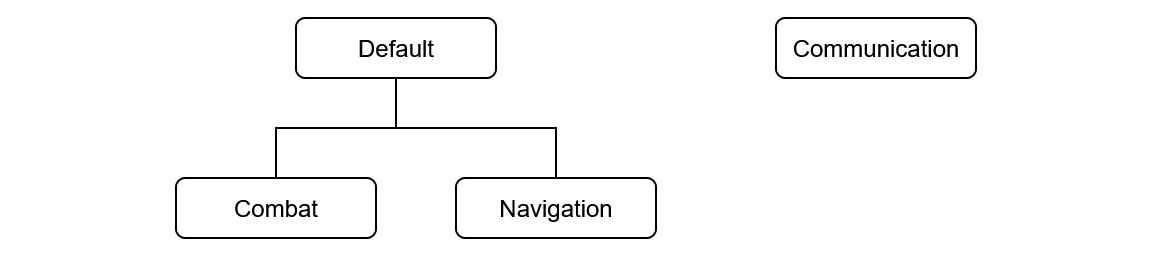
Representation of the modes shown in the above image as a relationship tree.
The Default mode is the parent of the Combat and Navigation modes, while the Communication mode stands on its own. Changing between modes is achieved using the Change Mode action.
Inheritance
The parent-child relationship, as in the case of Default being the parent of both Combat and Navigation has the following effects.
- If a child does not define action sequences for an input, the parent’s action sequences will be executed if they exist.
- If a child contains action sequences for an input, these will be executed even if the parent also defines action sequences.
Assigning Actions to Modes
You can select the mode that is being configured via the drop down menu at far right of the toolbar.

The toolbar with the selection of the mode being configured at the far right.
Once you select a mode in the toolbar all actions configured in the main part of the UI will be just for that mode. Selecting another mode will update the UI to show you the actions configured for that mode.
Currently Active Mode
When Gremlin is running the currently active mode is shown in the statusbar at the bottom left of the UI.

The statusbar shows information about Gremlin’s state when actively running.