Interface
In the following the various components of the user interface are introduced and their usage described. The UI should be sufficient for most common use cases. However, if functionality is missing, user created modules can provide these.
The following is a short overview of the different components that make up the main user interface, shown in the following image.
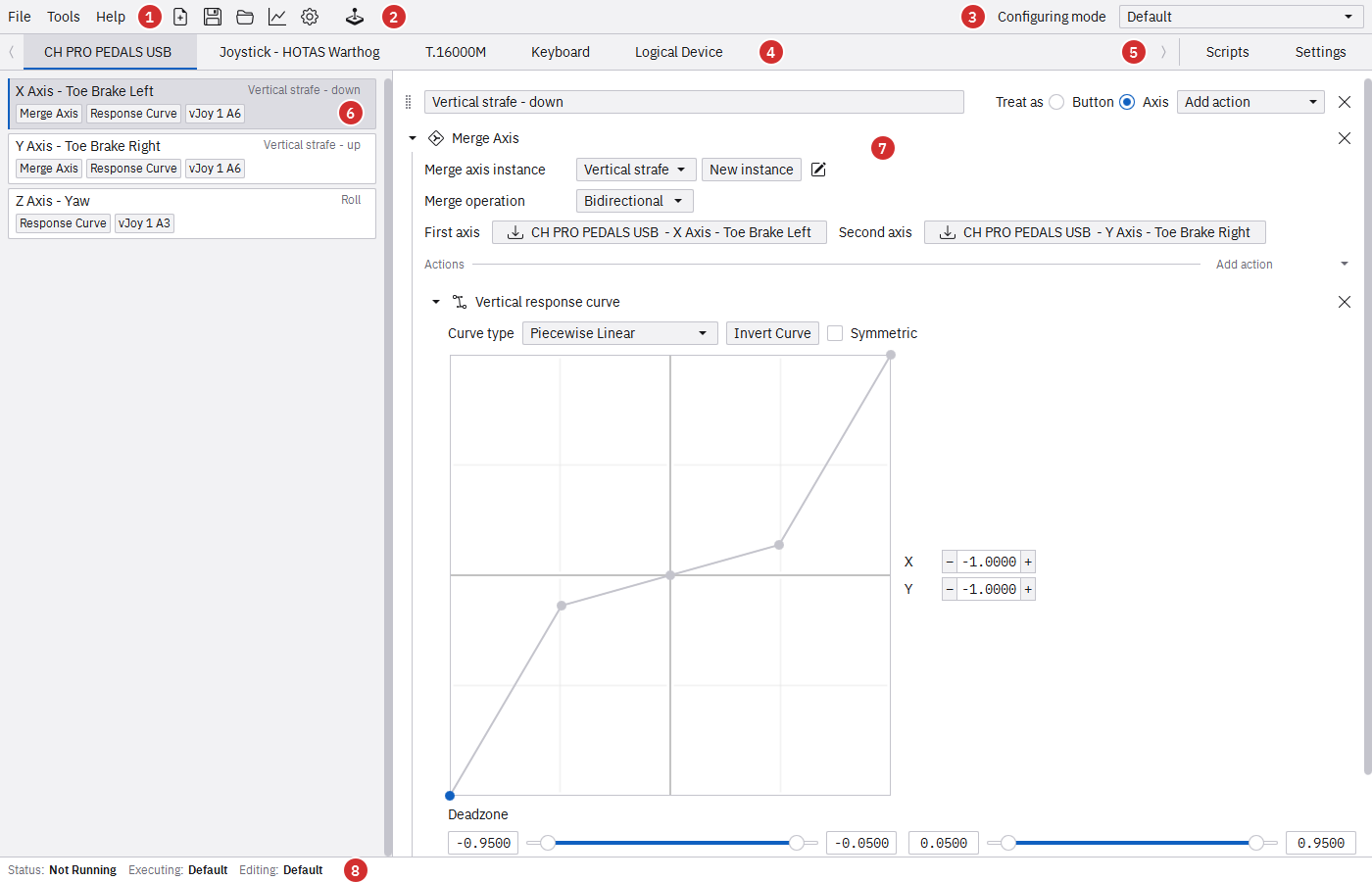
Joystick Gremlin UI
- The menu bar gives access to typical profile operations and tools.
- The toolbar holds the most commonly used operations, from left to right:
- Create a new profile.
- Save the current profile.
- Load an existing profile.
- Open the Input Viewer.
- Open the Options.
- Activate and deactivate Joystick Gremlin.
- Configuring mode selects the Mode whose actions are being edited.
- Each tab represents a device. Every connected physical device has its own tab, followed by the Keyboard tab, and the Logical Device tab.
- The Scripts tab manages user scripts and the Settings tab holds profile specific settings.
- List all inputs of the selected device. Each entry shows the input’s name, actions associated with it, and a description. These things can be changed in the options.
- The main part of the UI shows the selected input’s action sequences and allows configuring the actions to execute when the input is used.
- The status bar shows whether a profile is running or paused, the mode being executed, and the mode being edited.