Options
The options window shows the various options that Gremlin allows to be configured. Each entry has a short explanation of what the particular option does.
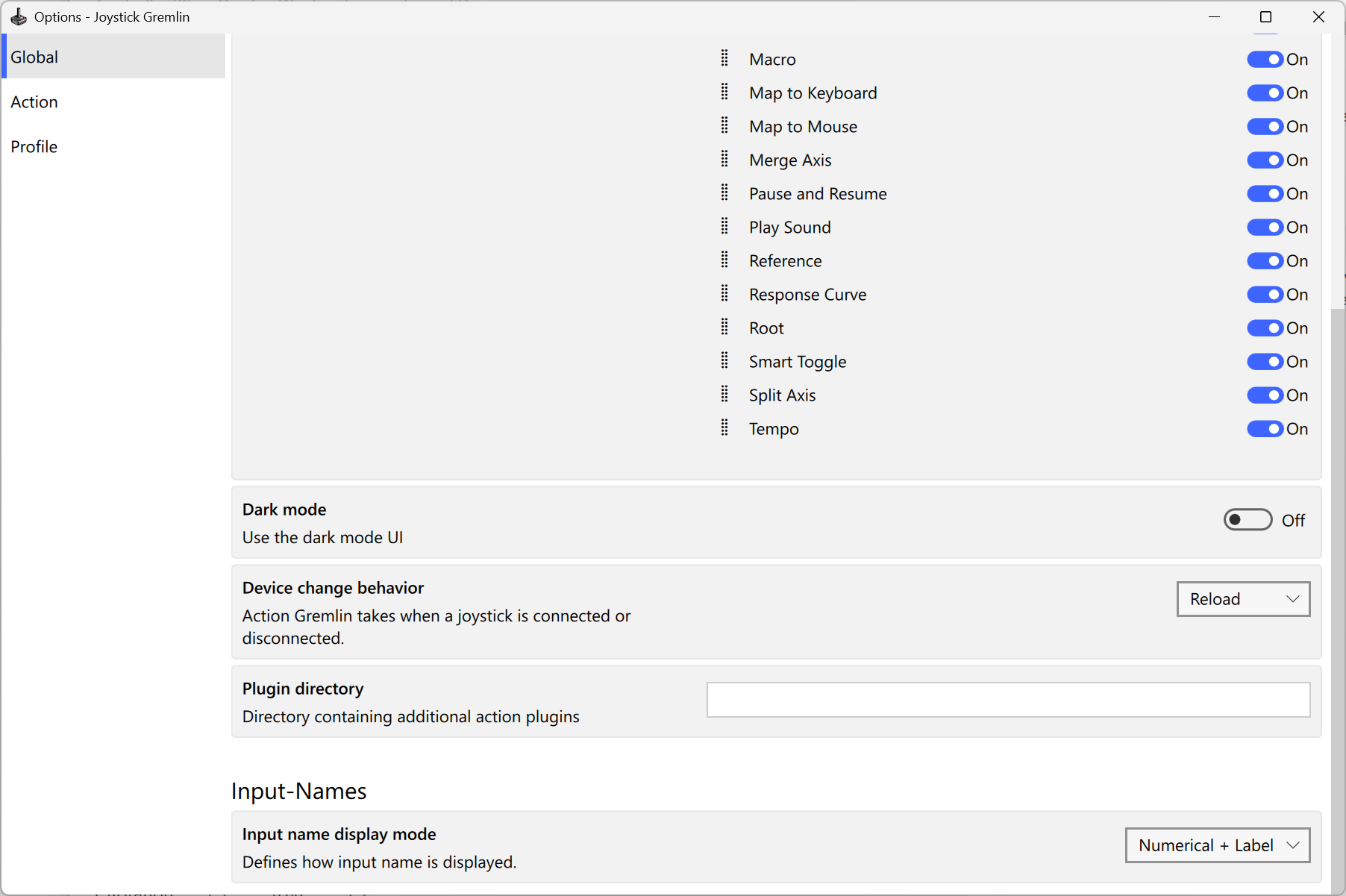
The options window exposes all the settings one can change in Gremlin.
The options are grouped into three sections which contain the following aspects:
- Global
- Contains general settings affecting Gremlin's overall behavior, described below.
- Action
- Contains all settings relating to the behavior of specific actions.
- Profile
- Contains all settings revolving around profile auto loading. An auto loading entry marked as Default needs no executable. It is used when the Focus loss behavior option is set to Load default and the focused executable has no entry of its own.
The following global options are worth pointing out.
- Color theme selection
- Selects the color theme of the UI, which can be dark, light, or zenburn.
- Ui scale
- Scales the UI to 100, 150, or 200 percent.
- Close to tray
- Closing the Gremlin window hides it in the system tray rather than terminating Gremlin. Gremlin is then quit via the tray icon's menu.
- Minimize to tray
- Minimizes the Gremlin window to the system tray instead of the taskbar.
- Input highlighting
- Using an input on a physical device selects that input in the UI, if the device's tab is the active one.
- Refresh axis on activation
- Upon activating a profile the known state of the physical devices is used to perform the actions associated with their axes, instead of waiting for the axes to be moved.
- Use legacy dill
- Uses the legacy input library instead of the new one, in case of problems with the latter. Changing this requires restarting Gremlin.